
Network Intelligence
Downloading Your LinkedIn Network: A 1-2-3 Step Guide
A practical guide to requesting your LinkedIn archive, finding the right connections file, and reviewing it before using it as ResumeRavenPro network intelligence.
“Download the network data first. Decide what it means later.”
ResumeRavenPro network intelligence starts with a simple boundary: your LinkedIn connections are signal, not proof. A connection can show professional adjacency. It does not prove closeness, trust, referral intent, or permission to automate outreach.
That is why the best workflow is small and reviewable. Request the archive from LinkedIn, find the connections file, inspect it, and only then decide what should become ResumeRavenPro context.
Step 1: Request the larger LinkedIn archive
In LinkedIn, open Me, choose Settings & Privacy, then open Data privacy. Under the area where LinkedIn describes how it uses your data, choose Get a copy of your data.
For network intelligence, choose the larger archive option that includes connections, contacts, account history, and related account data. LinkedIn’s Help Center says the larger download is delivered by email, and its connection-export article identifies that larger archive as the path for exporting connections.
Use a personal computer for this step. LinkedIn’s own account-data guidance warns against using a public computer for data downloads.
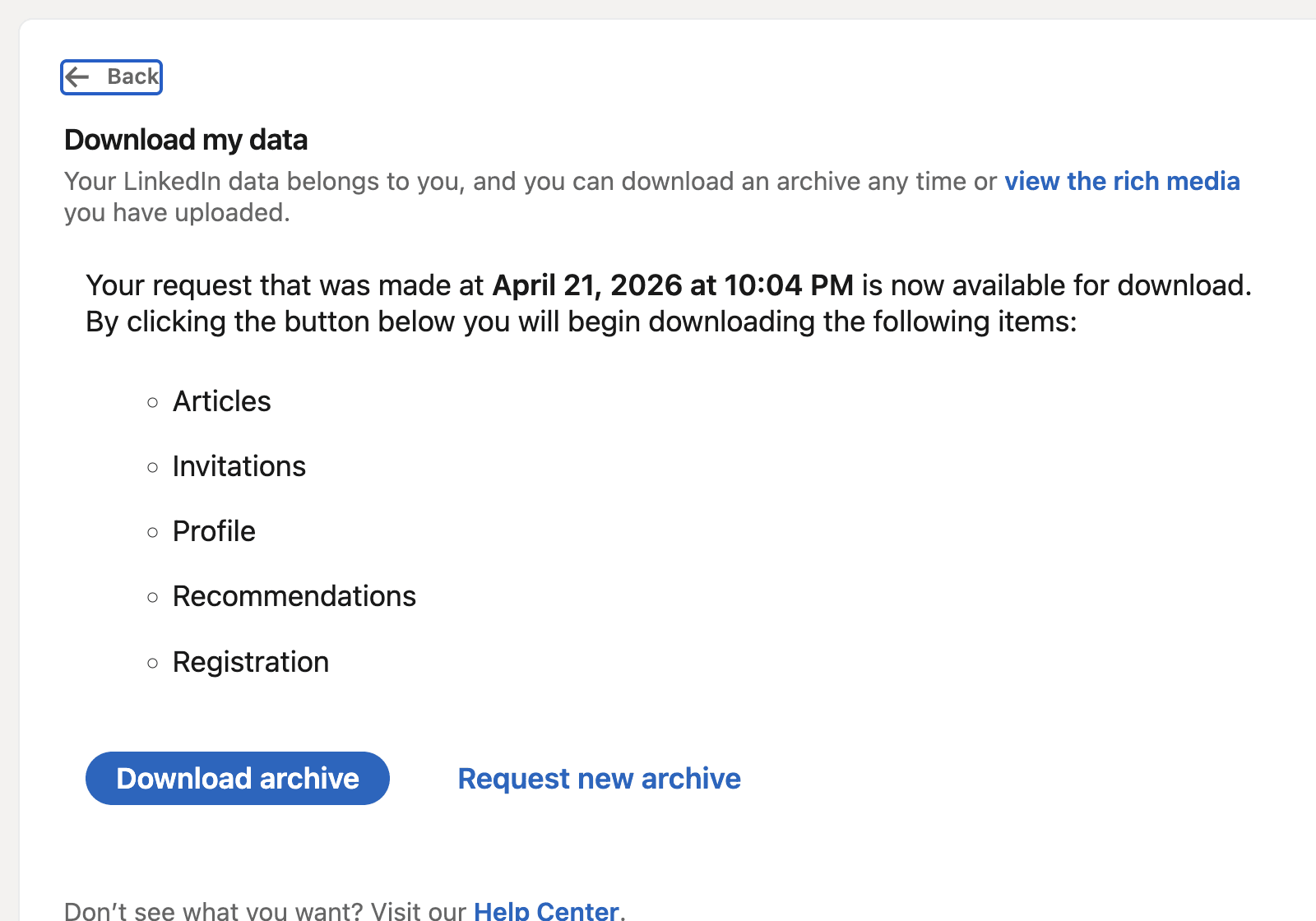
Step 2: Download the archive and find the connections file
When LinkedIn says the archive is ready, download the ZIP and unzip it locally. The folder can contain many files. That is normal.
Your first target is the connections-related CSV. Do not import everything. Start with the file that contains first-degree connection rows, then decide whether other archive files are useful later.
Step 3: Review the CSV before using it
Open the connections CSV in a spreadsheet app, preview tool, or VS Code. You are not looking for a perfect dataset. You are looking for enough trustworthy structure to make the import worth doing.
Check for:
- first and last name columns
- public profile URL
- email address, if present
- company and position
- connection date
- obvious stale rows or malformed rows
LinkedIn notes that some connection email addresses may be missing because members control whether their email address can be downloaded by connections. Treat missing emails as expected, not as an import failure.
What to do next in ResumeRavenPro
Once the archive looks usable, import reviewed contacts into ResumeRavenPro. The signed-in contacts workflow can accept a LinkedIn archive ZIP or a reviewed contacts file, depending on how much relationship context you are ready to bring in. After import, the value is not “more people to message.” The value is better prioritization:
- Which target companies already exist in your network orbit?
- Which contacts are attached to roles in your Top 25?
- Which weak ties deserve human review?
- Which companies need new network surface area?
- Which outreach drafts should stay gated behind manual review?
ResumeRavenPro should help you rank, reason, and prepare. It should not turn a LinkedIn archive into a blast list.
Recording note
The written workflow is ready for public readers. The remaining media pass is to record a live-site walkthrough with seed/test data, edit the clip, add captions, and replace or supplement the static screenshots with final video assets. That work is tracked separately so the article can stay useful while final footage is produced.
Sources
- LinkedIn Help, “Download your account data”, documents the Settings & Privacy path, larger-download timing, 72-hour download availability, personal computer guidance, and missing connection email-address limitations.
- LinkedIn Help, “Export connections from LinkedIn”, documents the larger archive option for exporting connection data and the request/download email handoff.
- ResumeRavenPro product and support documentation were used to verify product capability descriptions and human-review boundaries.